Wait — How Does This Thing Even Work?
You cannot test what you cannot see. Today you stop being a user of the internet and start being someone who can look inside it.
- Explain the difference between a website, a web app and a mobile app in your own words
- Describe the client–server relationship without sounding like a textbook
- Open DevTools on any page and read the Elements, Console and Network tabs
- Trace, step by step, everything that happens when someone clicks "Login"
1. Website, web app, mobile app — and why the difference matters to you
A website is something you mostly read. A blog, a news site, a company's About page. You click, you scroll, you leave. You change almost nothing.
A web app also lives in a browser, but it does things for you. You log in, you submit data, the page changes based on what you did. Gmail is a web app. So is Instagram on your laptop. So is any food-ordering platform. The difference is not the technology — it is how much you can change inside it.
A mobile app is installed on the phone itself, from the Play Store or App Store, and it can reach things a browser usually cannot: your camera, your GPS, your contacts, push notifications.
Why a tester cares: different kinds of software break in different places. A web app breaks when you press the browser's Back button after paying. A mobile app breaks when you rotate the phone mid-form, or when NIN verification runs and your network drops. Knowing what you are holding tells you where to go looking for trouble.
2. The restaurant: client, server, frontend, backend
Every app is a conversation between two computers: your device and a computer somewhere else. The clearest way to hold this is a restaurant.
You sit at a table and tell the waiter what you want. The waiter carries your order to the kitchen. The kitchen cooks it. The waiter brings the food back. You never enter the kitchen — you only experience ordering, waiting, and receiving.
| In the restaurant | In software | What it means |
|---|---|---|
| You at the table | The client | Your browser or phone screen — what you see and tap |
| The menu and the table | Frontend | Everything visible: layout, buttons, colours, forms |
| The waiter | The API | The messenger carrying requests there and answers back |
| The kitchen | The server / backend | Where the real logic happens, out of your sight |
| The store room | The database | Organised permanent storage — a very smart searchable spreadsheet |
That is the whole architecture of nearly everything you will ever test. When a tester says "I think it's a backend issue", they are saying: the waiter delivered my order fine, but the kitchen sent back the wrong plate.
3. What really happens when you click "Login"
This is the single most useful mental model in this entire course. Read it slowly. Almost every bug you will find in your career lives somewhere in these seven steps.
- You type your email and password. (Frontend — HTML built the form, CSS styled it, JavaScript is watching for your click.)
- You click Login. JavaScript grabs what you typed and packages it into a request.
- That request travels over the internet to the backend. (API.)
- The backend receives it and asks the database: does a user with this email exist, and does the password match?
- The database answers: match, or no match. (Your password is not stored as readable text — it is stored scrambled, so that even the company cannot read it.)
- The backend sends a response back through the API: success with a login token, or failure with an error message.
- The frontend receives that response and either shows your dashboard, or shows "Incorrect email or password."
Now look at how many places that can go wrong. The frontend might send the email with a trailing space. The backend might compare passwords case-sensitively when it shouldn't. The database might be slow and the frontend might give up waiting. The response might be correct but the frontend might display nothing at all — so the user clicks Login six more times. You do not need to write the code. You need to know where to point.
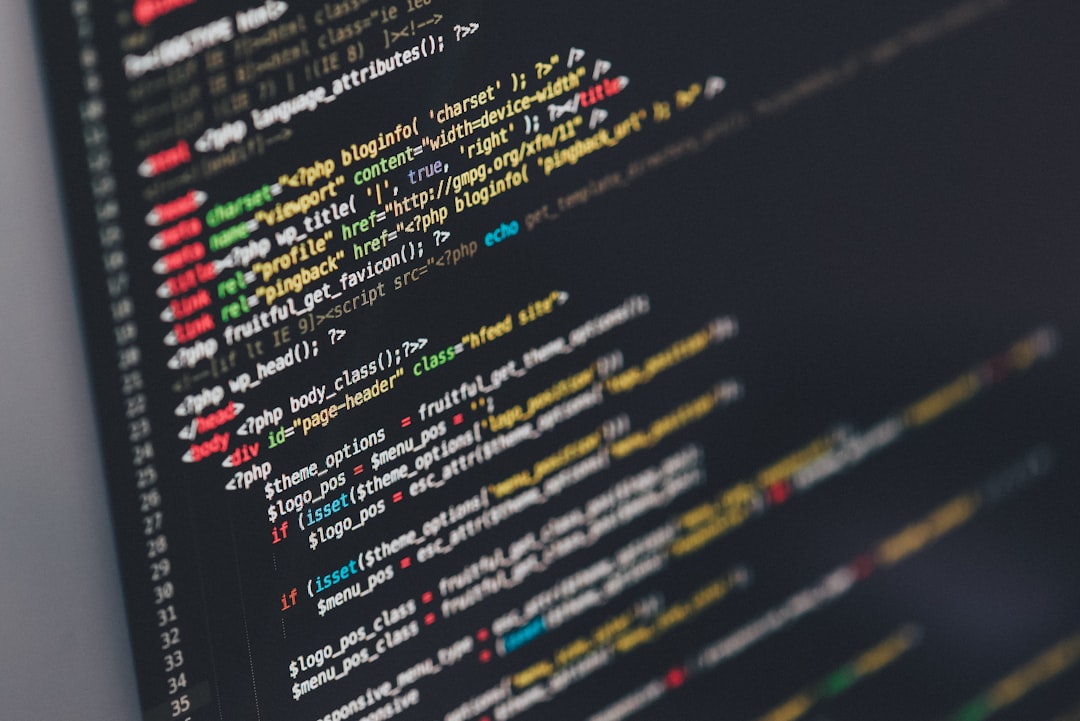
4. Meet DevTools — your new best friend
Every browser has a hidden panel called Developer Tools. Right-click anywhere on a page and choose Inspect, or press F12 on Windows, or Cmd + Option + I on Mac. Three tabs matter today:
- Elements — the actual structure of the page. Hover over lines here and the matching part of the page lights up. You can even edit text temporarily, which is how people make those fake screenshots.
- Console — messages and errors the page is producing in the background. Red text here almost always means something broke.
- Network — every single request the page makes to the server, and whether each one succeeded or failed. Refresh a page with this open and watch the whole conversation happen.
Here is the thing that should genuinely excite you: a page can look completely normal to every user on earth while the Console is full of red errors and the Network tab shows requests failing. Those failures are real bugs. Most people will never see them. You now can.
5. The names you will keep hearing
You are not going to write code in this course. But you will sit in meetings where these words fly around, and looking blank costs you credibility. Here is roughly what each one is for.
| Layer | Names you'll hear | What it does |
|---|---|---|
| Frontend | HTML, CSS, JavaScript | HTML builds the structure, CSS makes it look good, JavaScript makes it react |
| Backend | Python, PHP, Node.js, Java | Different companies pick different ones; they all hold the logic and talk to the database |
| Database | MySQL, PostgreSQL, MongoDB | MySQL and PostgreSQL store neat tables; MongoDB stores flexible, list-like records |
| Mobile | Swift, Kotlin, Flutter, React Native | Swift is iPhone only, Kotlin is Android only, Flutter and React Native do both at once |
Make AI read the error you cannot read yet
Console errors are written by developers, for developers. Today you use AI purely as a translator — not to think for you, but to turn one line of jargon into one line of English so you can decide whether it matters.
Copy this prompt into ChatGPT, Claude or Gemini:
I am learning software testing. I found this error in my browser's
Console tab on a live website. Explain it to me in plain English:

1. What does this error actually mean?
2. Is this a frontend problem or a backend problem?
3. Would a normal user notice anything, or is it invisible to them?
4. On a scale of "cosmetic" to "serious", how bad is it and why?

Do not give me code fixes. I am the tester, not the developer.

ERROR: [paste the red text from your Console here]
The catch — read this part. AI will sound completely confident even when it is guessing, because it cannot see the website. It does not know your context. Treat its answer as a colleague's opinion shouted across the room, not as fact. Your job is to check it against what you can see with your own eyes in the Network tab. That habit — trust, then verify — is the single most valuable thing you can carry out of this course.
- Open three different sites: one plain website (a blog or news site), one interactive web app (Gmail, an online store, your bank's web portal), and one of your own choosing.
- On each one, open DevTools and visit all three tabs: Elements, Console, Network.
- Write down: did you see any red errors in the Console? On which site, and what did it say?
- Refresh with the Network tab open. Write down the last request that loaded, and how many requests the page made in total.
- Screenshot one Console tab — error or clean — and save it in a folder called
testing-course. You are starting your evidence habit today.
Reflect in two lines: which of your three sites felt most like a "web app" and why? And what surprised you most about what was happening underneath?
Q1. What is the real difference between a website and a web app?
Reveal the answer
A web app is interactive — you log in, submit data, and change things inside it. A website is mostly for reading and browsing. It is about how much the software does for you, not about the technology used.
Q2. In the restaurant analogy, what does the waiter represent?
Reveal the answer
The API — the messenger that carries the request from the frontend to the backend and carries the answer back.
Q3. Which DevTools tab shows you a red error caused by broken code?
Reveal the answer
The Console tab. (Network shows failed requests; Elements shows page structure.)
Q4. In your own words: what is a database, and why does an app need one?
Reveal a good answer
A database is organised, permanent storage — like a very smart, searchable spreadsheet living on the server. Apps need one so they remember things between visits: your account, your orders, your messages. Without it, the app forgets everything the moment you close it.
Tick before you move on:
- I opened DevTools on three sites and looked at all three tabs
- I can explain the login journey out loud without looking
- I saved my first screenshot in a
testing-coursefolder